ShredOS Free Open-Source Disk Wiping Tool
ShredOS is a lightweight, bootable operating system designed specifically for securely erasing hard drives and SSDs. Unlike regular file deletion, which only removes references to files, ShredOS permanently wipes the data, making it completely unrecoverable. It’s a perfect solution for individuals, businesses, or IT professionals who need to dispose of old drives safely.
2024.05.2
85 MB
GPL v3
PartiallyFinite
Key Features of ShredOS
Permanent Data Erasure
ShredOS securely wipes all data on hard drives or SSDs, making recovery impossible, protecting sensitive personal or business information.
Multiple Wipe Algorithms
It provides various secure erase methods, including single-pass, multi-pass, and advanced algorithms, ensuring maximum data destruction based on user needs.
Simple Interface
The software features an intuitive interface, allowing both beginners and professionals to navigate options and start the wipe process easily.
Lightweight
ShredOS runs efficiently on minimal hardware resources, boots quickly, and wipes drives faster than most traditional disk erasure software.
Free and Open-Source
ShredOS is completely free to use, and its open-source nature allows anyone to inspect, modify, or contribute to the software.
Bootable USB Support
You can run ShredOS directly from a USB drive, without installing on your computer, ensuring safe and independent operation.
How ShredOS Works
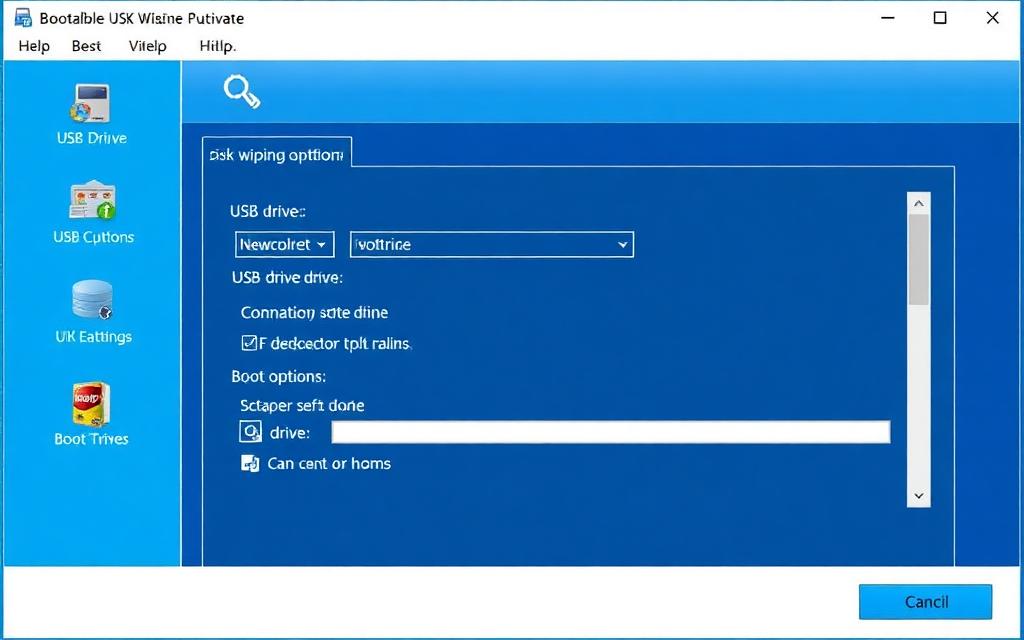
Booting from USB
ShredOS doesn’t run like a normal program on your current operating system. Instead, it boots directly from a USB drive. This is important because:
- It allows ShredOS to access drives without the OS locking files.
- Ensures that all data can be securely wiped, including system files.
- Steps:
- Download the ShredOS ISO file.
- Use a tool like Rufus to create a bootable USB.
- Insert the USB into your computer and restart.
- Enter the BIOS/UEFI menu
- Set the USB drive as the first boot device.
- Save changes and restart. ShredOS will load from the USB.
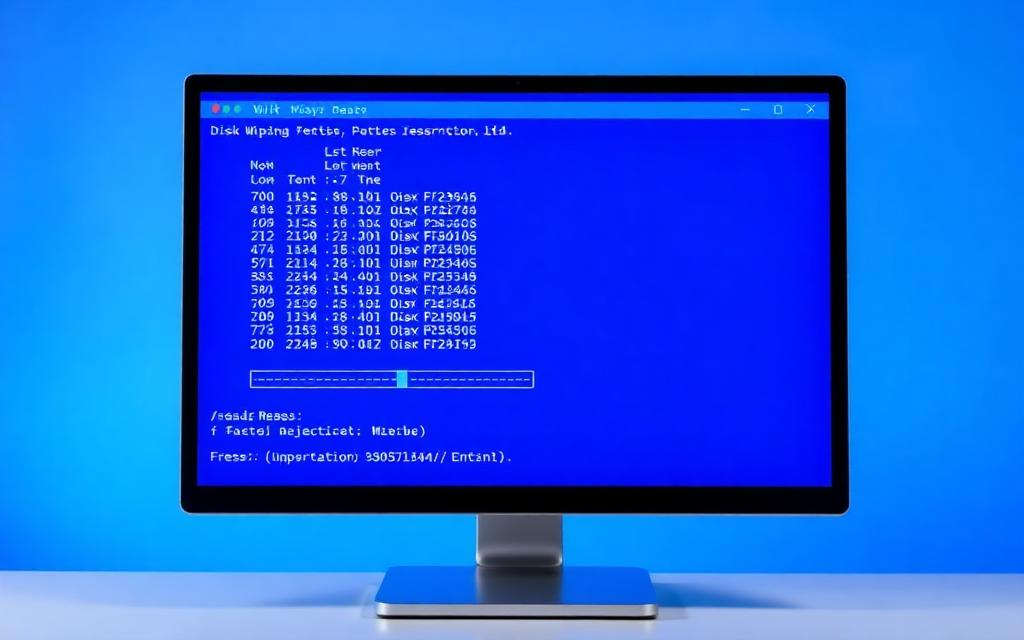
Detecting Storage Devices
Once ShredOS starts, it automatically scans your computer for all connected storage devices, such as:
- Internal hard drives (HDD)
- Solid-state drives (SSD)
- External USB drives
You will see a list of drives along with sizes, partitions, and device names, so you can pick the correct drive to wipe. This step is crucial because choosing the wrong drive can lead to permanent data loss.
Selecting Wipe Method
ShredOS gives you different erase methods to choose from depending on how secure you want the deletion to be:
- Single-pass wipe (zeros): Overwrites all data once with zeros. Fast, but less secure.
- Multiple-pass wipe (DoD standard): Overwrites data multiple times for extra security.
- Secure erase (for SSDs): Uses the drive’s built-in secure erase command.
- Random data overwrite: Fills the drive with random data to make recovery nearly impossible.
You simply select your preferred method from the menu.
Starting the Erase Process
After choosing the drive and method:
- Confirm your selections carefully (ShredOS will usually ask twice to prevent mistakes).
- Click or select “Start Wipe”.
- The program begins overwriting data on the drive.
- Depending on the drive size and method, this may take minutes to hours.
Important: Once started, this process cannot be undone.
Verification After Wipe
After the wipe is complete, ShredOS may perform verification to ensure:
- All sectors were successfully overwritten.
- No recoverable data remains.
- The drive is completely clean and secure.
Once verified, the drive is ready to be reused, sold, or disposed of safely.
Download ShredOS
Get the latest version and start securely wiping your disks today.
ShredOS ISO
Latest stable release for bootable USB or CD
Version: Latest • ~50 MB • Free
ShredOS ISO
Processor
x86 / x86_64 (Intel or AMD)
RAM
512 MB minimum
Storage
USB drive (2 GB+) for boot
OS Support
Windows, Linux (bootable)
Latest Version Information
ShredOS is regularly updated to improve performance, add better hardware support, and enhance security. The latest version typically includes:
- Updated wipe algorithms
- Improved hardware detection
- Bug fixes from previous releases
Whenever a new release is available, it’s a good idea to download the latest version to ensure compatibility with modern drives and systems.
ISO File Download Option
ShredOS is distributed as an ISO image file, which is a complete snapshot of the ShredOS operating system packaged in a single file. You need this ISO file to create a bootable USB.
Here’s how it works:
- The ISO contains a lightweight Linux‑based OS.
- You write this ISO to a USB drive.
You then boot your computer from that USB to run ShredOS without installing anything to your hard drive.
ShredOS Use Cases
ShredOS is mainly used in situations where you need to permanently erase data so that it cannot be recovered. Below are the most common and important use cases explained in detail:
Before Selling a Computer
Jab aap apna computer ya laptop sell karte hain, to usme aapka personal data hota hai, jaise:
- Personal photos
- Videos
- Saved passwords
- Bank details
- Documents
Agar aap normal delete ya Windows reset karte ho, to data recovery software se data wapas recover ho sakta hai.
ShredOS permanently overwrite karta hai data ko, jis se buyer aapka koi bhi old data recover nahi kar sakta.
Before Donating a PC
Agar aap apna PC:
- School
- Friend
- Relative
- Charity
ko donate kar rahe ho, to bhi same risk hota hai.
Even agar system empty lag raha ho, tab bhi hidden data recover ho sakta hai.
ShredOS use karne se drive completely clean ho jati hai, aur new user fresh system use kar sakta hai.
Removing Sensitive Business Data
Companies aur offices ke computers mein important data hota hai, jaise:
- Client information
- Financial records
- Employee data
- Confidential files
Agar ye data leak ho jaye, to:
- Legal problems ho sakte hain
- Financial loss ho sakta hai
- Company reputation damage ho sakti hai
ShredOS enterprise-level secure wiping provide karta hai, jo business data ko permanently destroy kar deta hai.
Reusing Old Drives
Kabhi kabhi aap old hard drive ko:
- New computer mein use karna chahte ho
- External storage banana chahte ho
- Backup drive banana chahte ho
Old drive mein:
- Virus
- Malware
- Corrupted files
- ho sakte hain.
ShredOS drive ko completely fresh bana deta hai, bilkul new drive ki tarah.
IT Asset Disposal
IT companies aur organizations regularly:
- Old computers
- Servers
- Hard drives
dispose karti hain.
Data protection laws ke mutabiq, data properly erase karna zaroori hota hai.
Agar proper erase na ho to:
- Data breach ho sakta hai
- Legal penalties lag sakti hain
ShredOS professional IT asset disposal ke liye ideal tool hai, kyunki ye secure aur verified wiping karta hai.
Is ShredOS Safe?
Yes, ShredOS is considered very safe and reliable for permanently erasing data. It is specifically designed to ensure that deleted files cannot be recovered using any recovery software.
Data Recovery Possibility
When you delete files normally or format a drive, the data is not completely removed it can often be recovered using recovery tools. However, ShredOS works differently:
- It overwrites the entire drive with random data or zeros
- This process destroys the original data completely
- After wiping, data recovery becomes practically impossible
Even professional recovery tools cannot restore properly wiped data.
- This makes ShredOS ideal for:
- Selling your computer
- Donating your laptop
- Disposing of old drives
Removing sensitive personal or business data
Security Level Explanation
ShredOS uses professional disk wiping standards that meet secure erasure requirements.
Security depends on the wipe method you choose:
- Single pass wipe Fast and secure for normal users
- Multiple pass wipe Higher security, used by businesses and organizations
- Secure erase commands Hardware-level erase for maximum protection
Each overwrite makes data reconstruction harder, and after multiple passes, recovery is virtually impossible.
- This level of wiping is similar to tools used by:
- IT professionals
- Government offices
- Corporate environments
Removing sensitive personal or business data
ShredOS vs Other Disk Wiping Tools
| Feature | ShredOS | DBAN | Blancco | KillDisk |
|---|---|---|---|---|
| Type | Free & Open Source | Free | Paid | Free & Paid |
| Speed | Very Fast and Optimized | Moderate Speed | Fast | Moderate |
| Security Level | High Security Multiple Methods | High but outdated | Very High Certified | High |
| Ease of Use | Very Easy User Interface | Simple but old interface | Professional Interface | Moderate |
| SSD Support | Yes Full Support | Limited Support | Full Support | Yes |
| Cost | Completely Free | Free | Expensive | Free & Paid |
| Best For | Personal & Professional Use | Personal Use | Enterprise Use | Mixed Users |
ShredOS FAQs
What is ShredOS?
ShredOS is a free and open-source disk wiping operating system designed to permanently erase data from hard drives, SSDs, and other storage devices. It ensures your data cannot be recovered after deletion.
Is ShredOS free to use?
Yes, ShredOS is completely free to download and use. It is an open-source project available publicly on GitHub.
Can data be recovered after using ShredOS?
No, once ShredOS wipes a drive, the data is permanently erased and cannot be recovered using normal recovery tools.
Does ShredOS support SSD drives?
Yes, ShredOS supports SSDs, HDDs, and USB storage devices. It can securely erase modern storage hardware.
How do I use ShredOS?
You need to create a bootable USB with the ShredOS ISO file, boot your computer from the USB, select the drive, and start the wipe process.
Is ShredOS safe to use?
Yes, ShredOS is safe and trusted. It is widely used by IT professionals and organizations for secure data destruction.
Does ShredOS delete the operating system?
Yes, ShredOS deletes everything on the selected drive, including the operating system, files, and partitions.
Can ShredOS wipe external hard drives?
Yes, ShredOS can wipe external hard drives, USB flash drives, and other connected storage devices.
Do I need to install ShredOS?
No, ShredOS does not require installation. It runs directly from a bootable USB drive.
How long does ShredOS take to erase a drive?
The time depends on the drive size and wipe method. It can take from a few minutes to several hours.
What wipe methods does ShredOS use?
ShredOS supports multiple secure erase methods, including single-pass and multi-pass overwriting.
Is ShredOS better than normal file deletion?
Yes, normal deletion can be recovered, but ShredOS permanently destroys data, making recovery impossible.
Can beginners use ShredOS?
Yes, ShredOS has a simple and user-friendly interface that beginners can easily use.
When should I use ShredOS?
You should use ShredOS before:
- Selling your computer
- Donating your PC
- Disposing of old drives
- Removing sensitive data
Does ShredOS work on all computers?
ShredOS works on most computers that support USB boot, including both BIOS and UEFI systems.
ShredOS – Free Secure Disk Wiping & Data Erasure Tool
Download ShredOS ISO for free and permanently erase hard drives, SSDs, and USB devices. Secure bootable disk wiping software for complete data destruction.
Price: Free
Price Currency: $
Operating System: Windows
Application Category: Software
4.8